
Getting started
Trading Assistant has two parts you install. The addon runs in World of Warcraft: Forever and replaces the auction house window. The desktop app installs the addon, brings your house’s price history from a price server, and shows what the addon recorded.
The addon also works without the app: it builds its own price history from your scans.
1. Install the desktop app
Section titled “1. Install the desktop app”2. Follow the guided setup
Section titled “2. Follow the guided setup”The first time it opens, the app walks you through four things it needs. Each step is marked done by what the app finds, not by a box you tick:
- Game folder. The app looks for World of Warcraft where it usually installs on macOS and
Windows. If it is somewhere else, choose the folder named World of Warcraft, or the
_forever_folder inside it. WoW: Forever must have been started once from the Battle.net app. - Addon. Install puts the addon the app carries into
Interface/AddOns/TradingAssistant. It takes effect at the next/reloador login, so the game may be running. - Price server. Paste the server’s address and your access key, then Test connection. The key comes from whoever runs the price server; see Price server. The key is kept in your system’s keychain and never shown again.
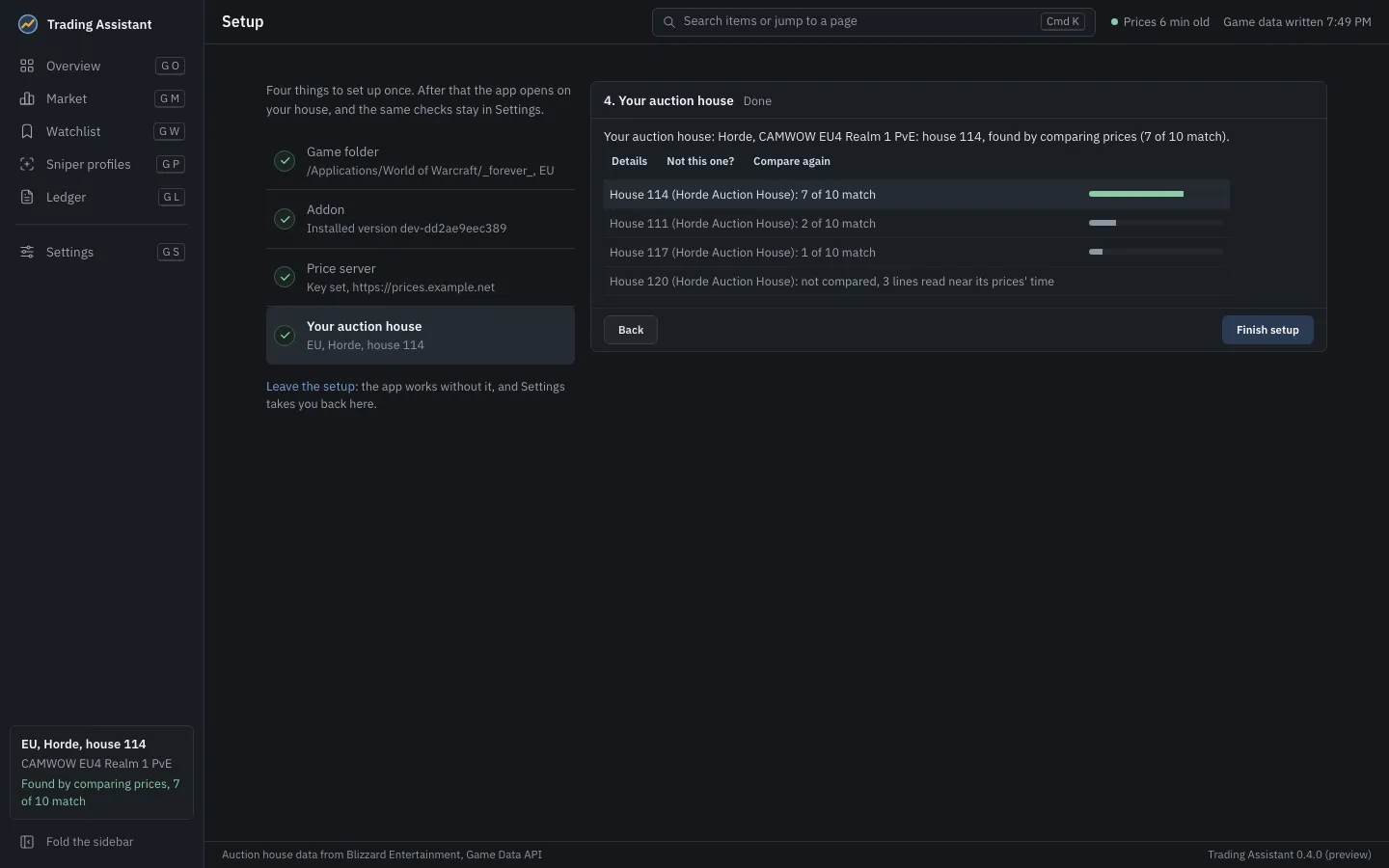
- Your auction house. The app compares prices your addon read in game with each auction house on the server and keeps the one that matches. It needs a visit to the auction house first: see step 4 below.
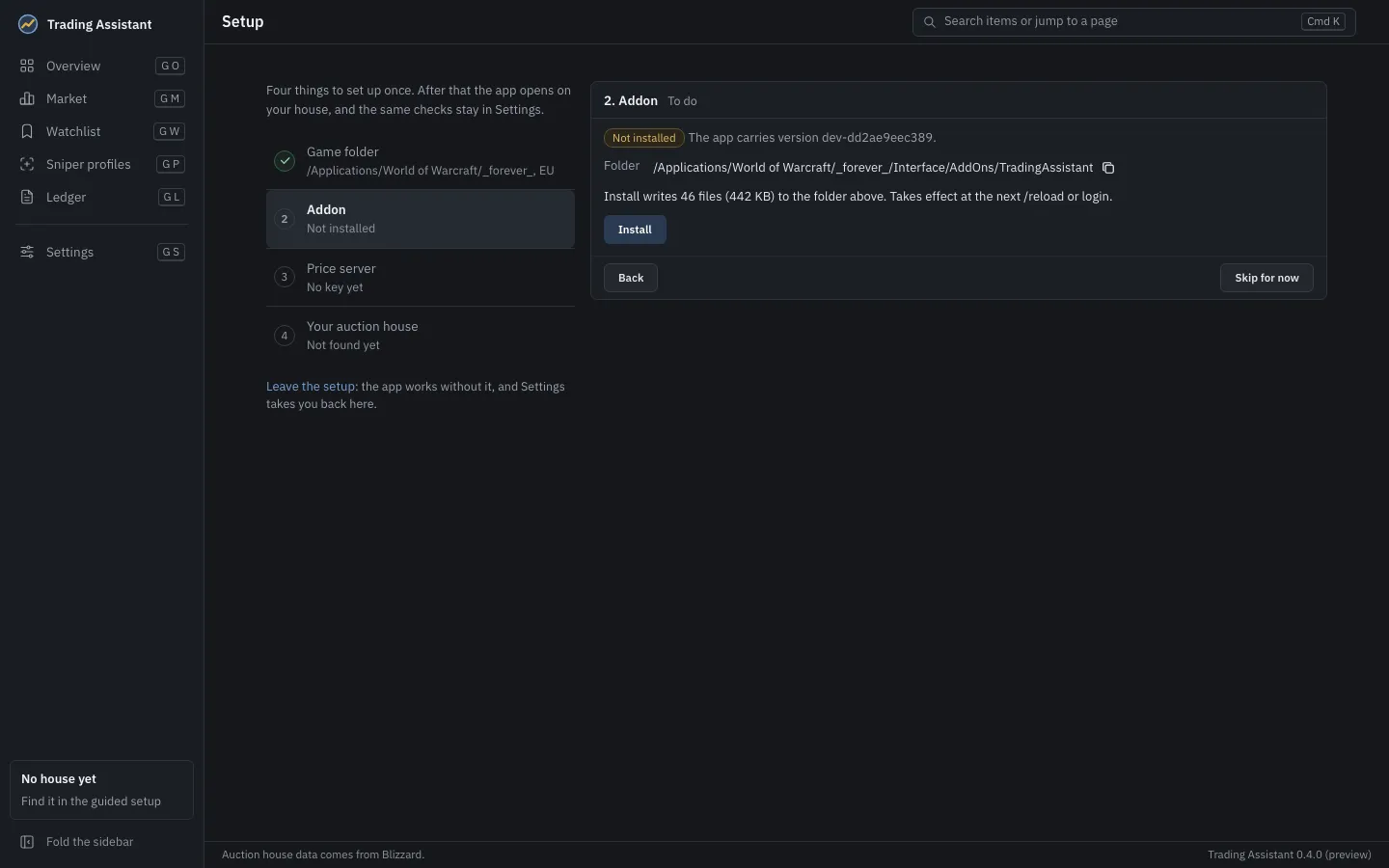
Skip for now moves on without finishing a step, and Leave the setup closes it: the app works without it, and Settings has the same four checks and a link back into the setup. When everything is found, the setup says so and opens the app.
3. The addon in game
Section titled “3. The addon in game”Log in, or type /reload if the game was already running. Visit an auctioneer: the addon’s
window opens in place of the game’s auction window. Its tabs are Sniper, Search, Sell
and Settings; see The window.
To use the game’s own window, click Blizzard in the title bar, or turn off Replace the game’s window in the addon’s settings.
4. Run a first scan in game
Section titled “4. Run a first scan in game”At the auction house, click Scan in the window’s title bar. The addon lists the whole auction house (about 40 seconds on a busy one), notes every commodity’s price, then reads up to 300 items in full in the background. The title bar counts its progress. This is how your own price history starts; see Scan.
The game writes the addon’s saved data to disk only when you log out or type /reload. After that:
- the app imports it when it starts, or when you press Import now in Settings, Addon;
- the app can then find your auction house (step 4 of the setup) and sync the server’s prices
for it into the game, as a second addon the game reads at the next
/reload.
Your own scans give an item a usual price once two earlier days have been scanned (the default
of Days for a usual price). Until then the addon can judge against what is listed right now,
marked ~. With the app’s server prices it can use the server’s history at once, marked *.
See The usual price.